
Online sales: what happens when someone buys
1. The buyer reserves and pays
When the buyer clicks Pay, the artworks in the cart are reserved for the minutes you have set (30 by default) and the buyer goes to Stripe's secure page. Meanwhile nobody else can buy them: if someone else tries, the shop tells them the artwork is reserved.
- If they pay, they come back to your website and see «Payment received». The payment goes into your Stripe account.
- If they don't pay (they close the page, cancel or the card is declined), the reservation stays until it expires and then the artworks go back on sale by themselves. There is nothing to do.
Only the price of the artworks is charged, in the gallery's currency. Before paying, the buyer sees a notice that packaging, shipping and, where applicable, taxes are charged separately and that you will get in touch.
2. You get the notice and the draft sale
Each order has a short reference of 8 characters, for example #12E60EYB. It is the one the buyer sees and the one you will see everywhere.
As soon as Stripe confirms the payment:
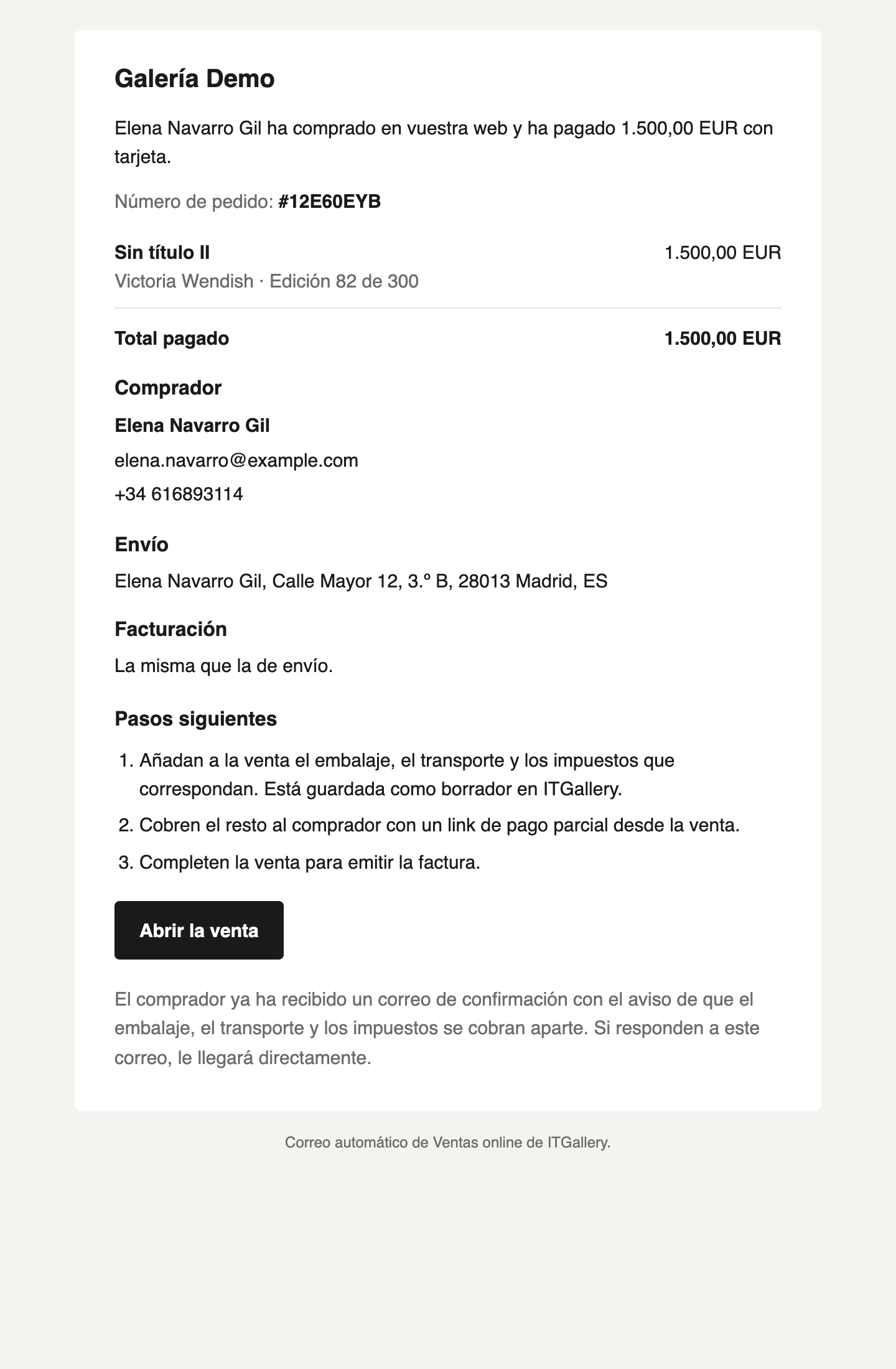
- You receive a «New online sale» email with the order, the artworks, the buyer's details and a link to the sale. If you reply to that email, the reply goes to the buyer.
- The buyer receives the purchase confirmation in the language they bought in, with the order reference and the notice about the separate costs.
- ITGallery creates a draft sale with the buyer as a contact (if a contact with that email already exists, it is used), the artworks as sold and the payment recorded with the Stripe reference. The sale Details say «Online order #12E60EYB», which is what the buyer will see on the invoice.
3. See the orders: Sales → Online sales
Sales → Online sales lists all the orders. At the top, three figures that also work as filters: awaiting payment, to be completed (paid with the sale still a draft) and paid this year.
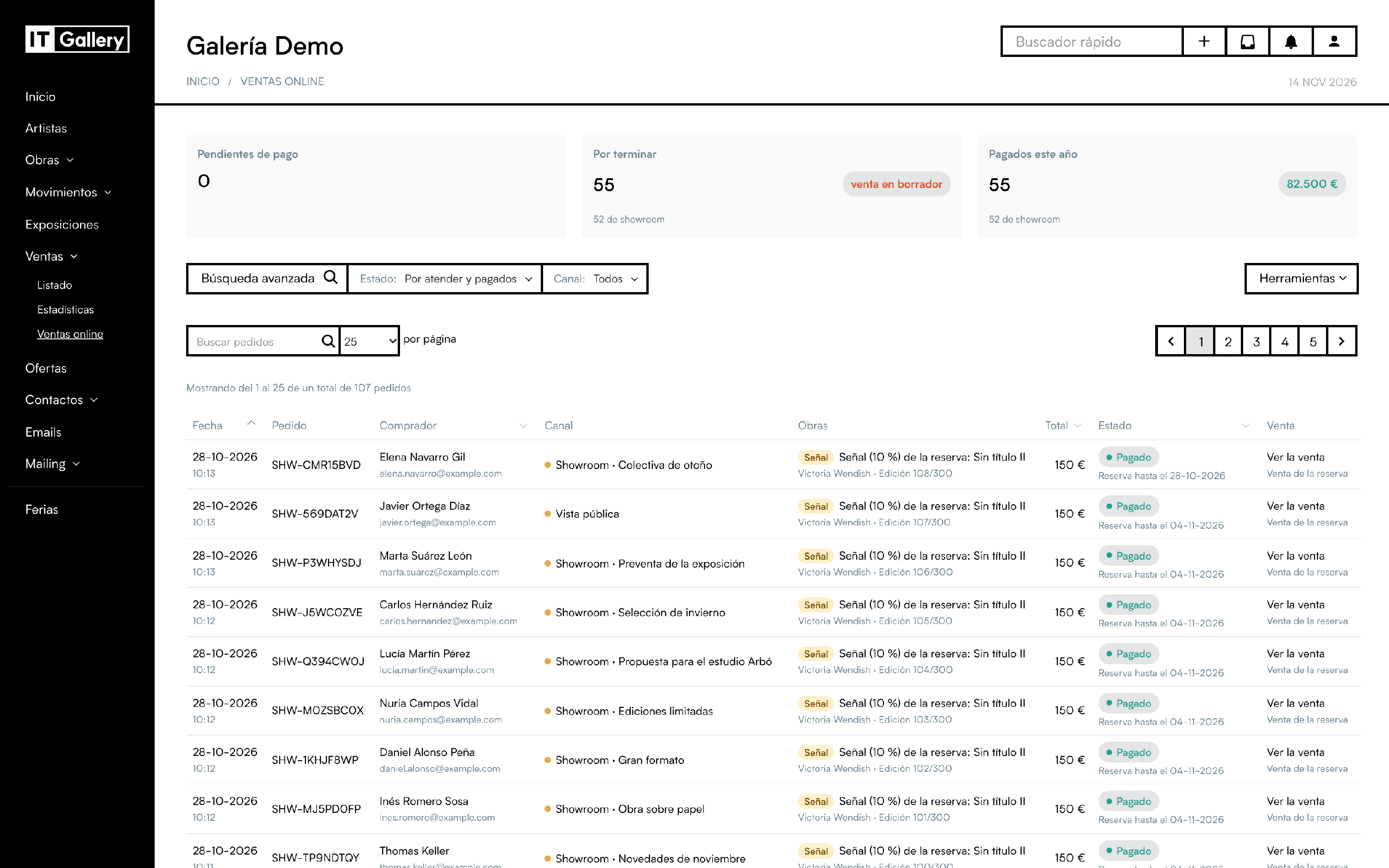
Order statuses:
| Status | What it means |
|---|---|
| Awaiting payment | The buyer is on the payment page. The artworks are reserved until the time shown. |
| Paid | Charged. There is a sale: Complete the sale if it is still a draft, or View sale if it is already final. |
| Paid, artwork unavailable | Rare: the buyer paid when the reservation had already expired and someone else had bought the artwork. No sale is created: refund the payment from Stripe and write to the buyer. |
| Expired | The buyer didn't pay in time. The artworks are back on sale. |
| Payment failed | The payment was never completed (for example, a delayed payment the bank declined). The artworks are back on sale. |
By default the list shows the orders to handle and paid. Expired and failed orders need nothing from you and are not shown, but the end of the list says how many there are, with a Show them link.
To find an order:
- Search: by buyer, email or artwork.
- Status: the drop-down, with how many orders there are in each status.
- Advanced search: order date, artwork or artist, sale (draft, completed or no sale), amount and buyer's language. While filtering, «Filtering by: …» shows with Remove filters.
- Click a column heading to sort by it.
In Tools you can export to Excel what you have filtered or export everything, open the payments in Stripe and go to the Online sales settings.
4. Complete the sale
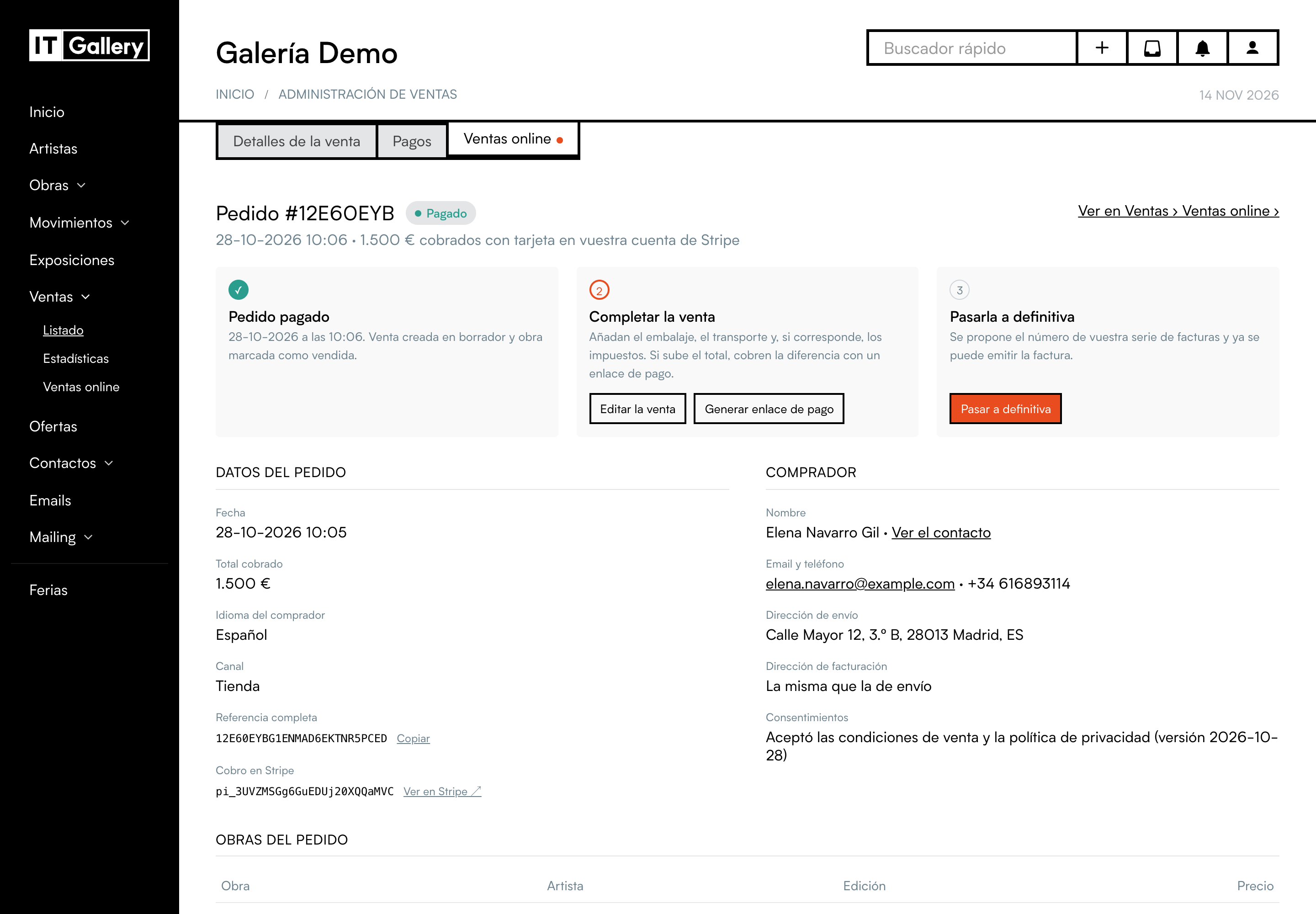
Sales that come from an order have an Online sales tab on the sale page, with an orange dot while the sale is to be completed. Below the sale status, the Online sale · to be completed notice takes you there. From Sales → Online sales, Complete the sale opens the sale straight on that tab.
The tab shows the order, the buyer, the artworks and the three steps:
- Order paid ✓: the sale was created as a draft with the artworks as sold.
- Complete the sale: with Edit sale, use Add concept to add what is missing (for example «Packaging and shipping» and the amount) and, where applicable, taxes; click the ✓ on the line to add it. If the total goes up, charge the difference with Generate payment link (partial) and send the link to the buyer.
- Make it final: Make final opens the sale with the «Final» type already chosen. Choose the typology (it is required) and save: the invoice is issued.
Invoice number: while it is a draft, the sale has a provisional number such as WEB-12E60EYB. When you make it final, ITGallery proposes the next number in your invoice series; you can change it before saving.
Sale status: while it is a draft, the sale shows the status «Draft». When you save it as final, the status is worked out from the payments: «Paid» if what has been charged covers the total, or «Partially paid» if you have added shipping or another item and have not charged it yet.
Once the sale is final, the tab shows the three steps as done, with the invoice number, and the notice becomes Online sale.
Refunds
If you need to refund a payment, do it from your Stripe account (Payments → the payment → Refund). In the sale's Online sales tab, View in Stripe opens the payment.
Next: Frequently asked questions.