
Online sales: activate and set up the shop
Online sales is activated and set up in My gallery → Integrations → Online sales. To see it, your licence must include the Online sales add-on and your user must have permission to set it up, which you request from support. If you have just added it and can't see it, log out and log in again; if it still doesn't appear, write to support.
1. Activate Online sales
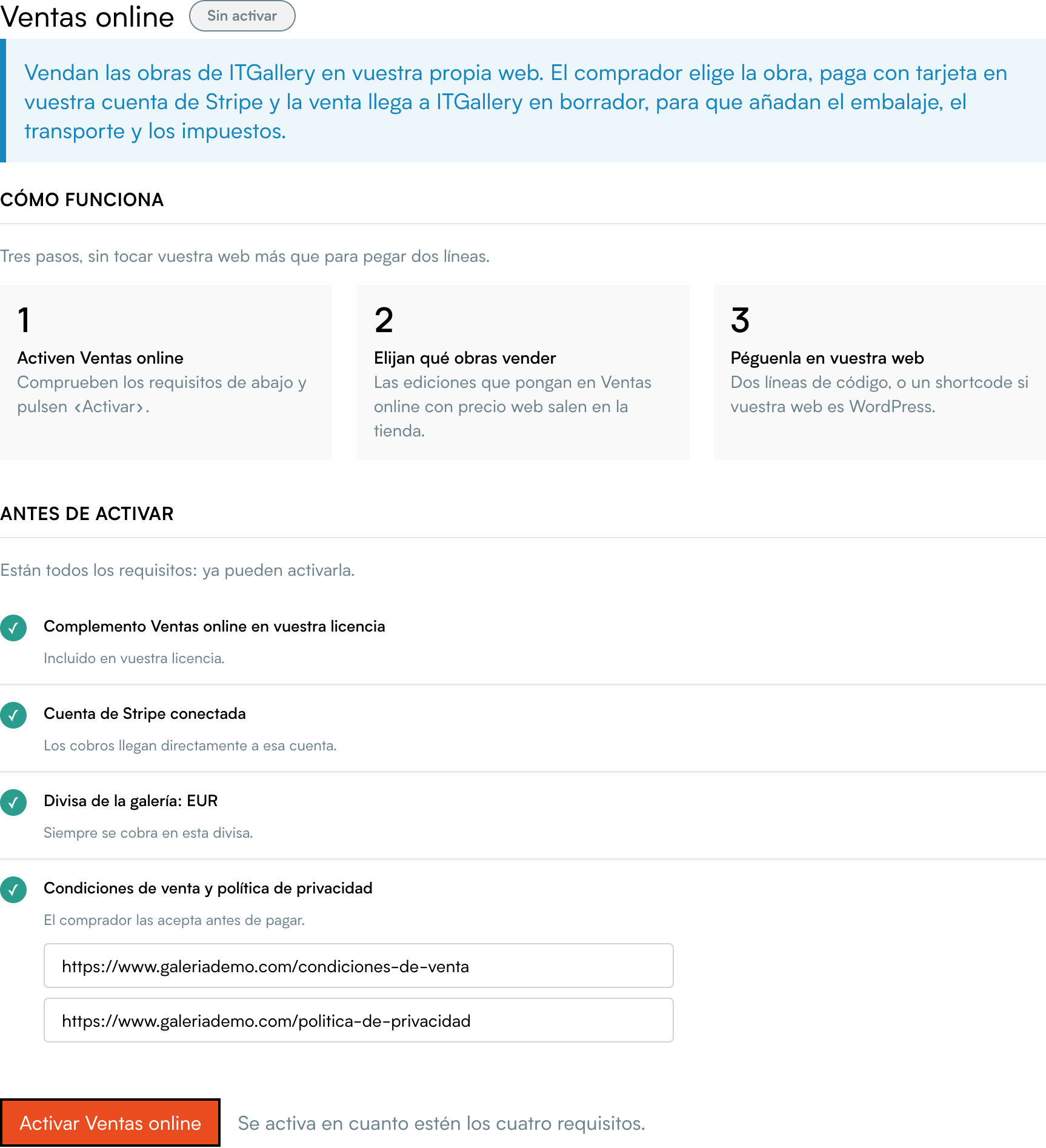
The first time, the screen only explains what it is and what is missing:
- How it works, in three steps: activate Online sales, choose what to sell and paste it on your website.
- Before activating: the four requirements, each with a green tick if it is ready or with what is missing. You enter the addresses of your terms of sale and privacy policy right here.
When all four requirements are met, click Activate Online sales. The key, the code to paste on your website and the shop settings appear.
2. The Online sales screen
With Online sales active, at the top you will see:
- The status: Active or Paused, with the View the shop button (opens the shop with your key in another tab) and Guide.
- Three figures: artworks for sale (and how many show with «Enquire»), orders awaiting payment and paid orders, with this month's. The order figures take you to Sales → Online sales.
Below are the settings, in seven sections grouped into Installation and sales, Catalogue and appearance and Languages, currencies and advanced. Each section shows a summary of how it is set; click edit to open it.
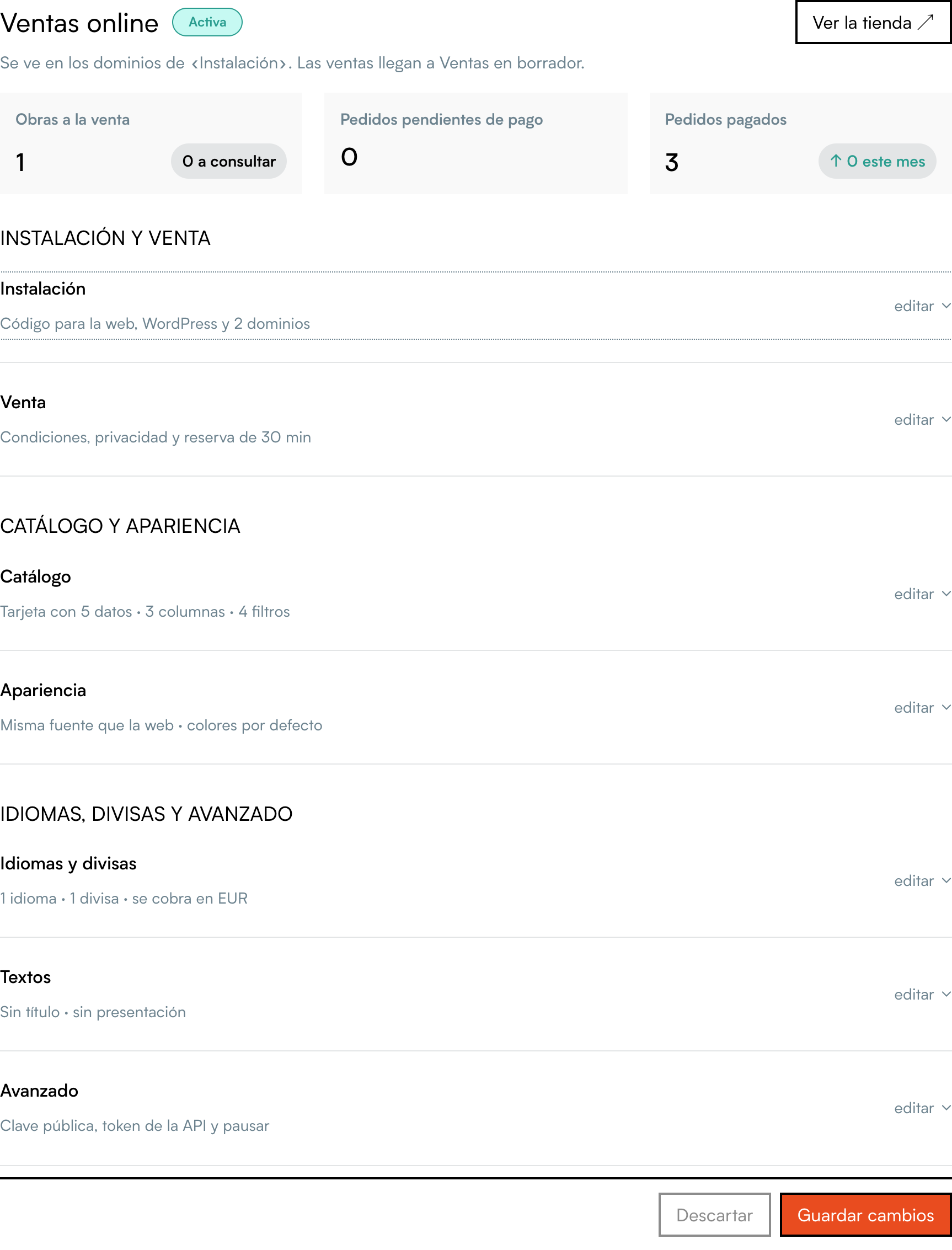
At the bottom there is always the bar with Save changes and Discard. Changes in all the sections are saved together, and while anything is unsaved the bar says so: There are unsaved changes.
3. Installation
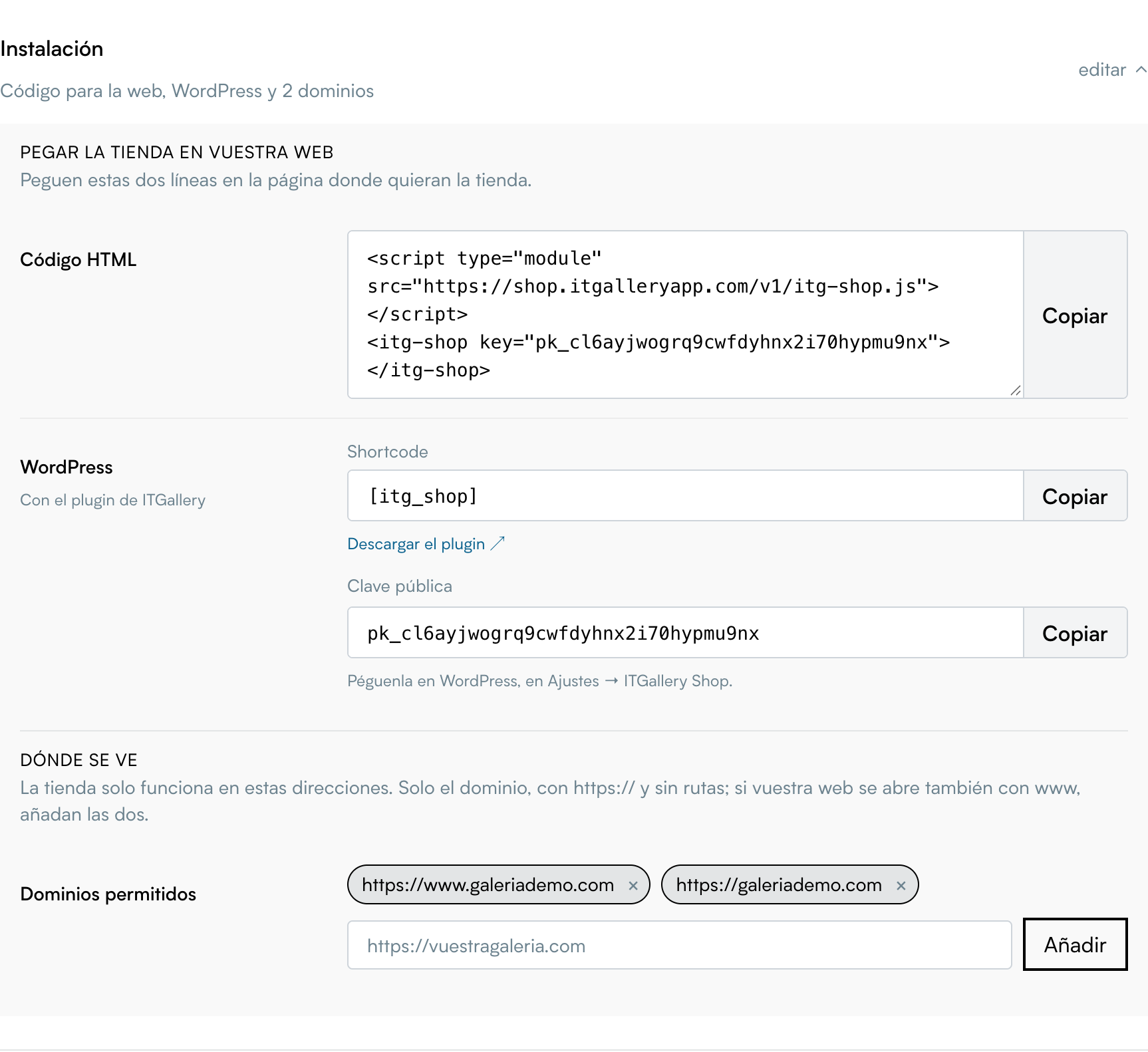
- Paste the shop on your website: the HTML code with your key, with the Copy button, and the
[itg_shop]shortcode for the WordPress plugin. How to paste it: Add the shop to your website. - Where it shows: the allowed domains. The shop only works at these addresses. Enter only the domain, with
https://and no paths, for examplehttps://yourgallery.com, and click Add. If your website also opens withwww, add both. You can add up to 10.
4. Sales
- Terms of sale and Privacy policy: the address of each page on your website. Buyers accept both before paying.
- Hold: while the buyer pays, the artworks in the order are reserved and nobody else can buy them. 30 minutes by default (the minimum); you can raise it up to 1,440 (one day).
- How it sells: Shopping cart (if you untick it, artworks can only be enquired about) and «Enquire» button on artworks.
5. Catalogue
- Card details: what the listing shows for each artwork. By default, artist, title, year, dimensions and price; untick whatever you don't want.
- Columns of the listing on mobile, tablet and desktop.
- Image ratio: each artwork's original, square, portrait or landscape.
- Sold artworks: if you show them, they stay in the listing with the «Sold» label and no buy button.
- Filters (type of artwork, artist, price, dimensions and text search) and the artwork page details.
6. Appearance
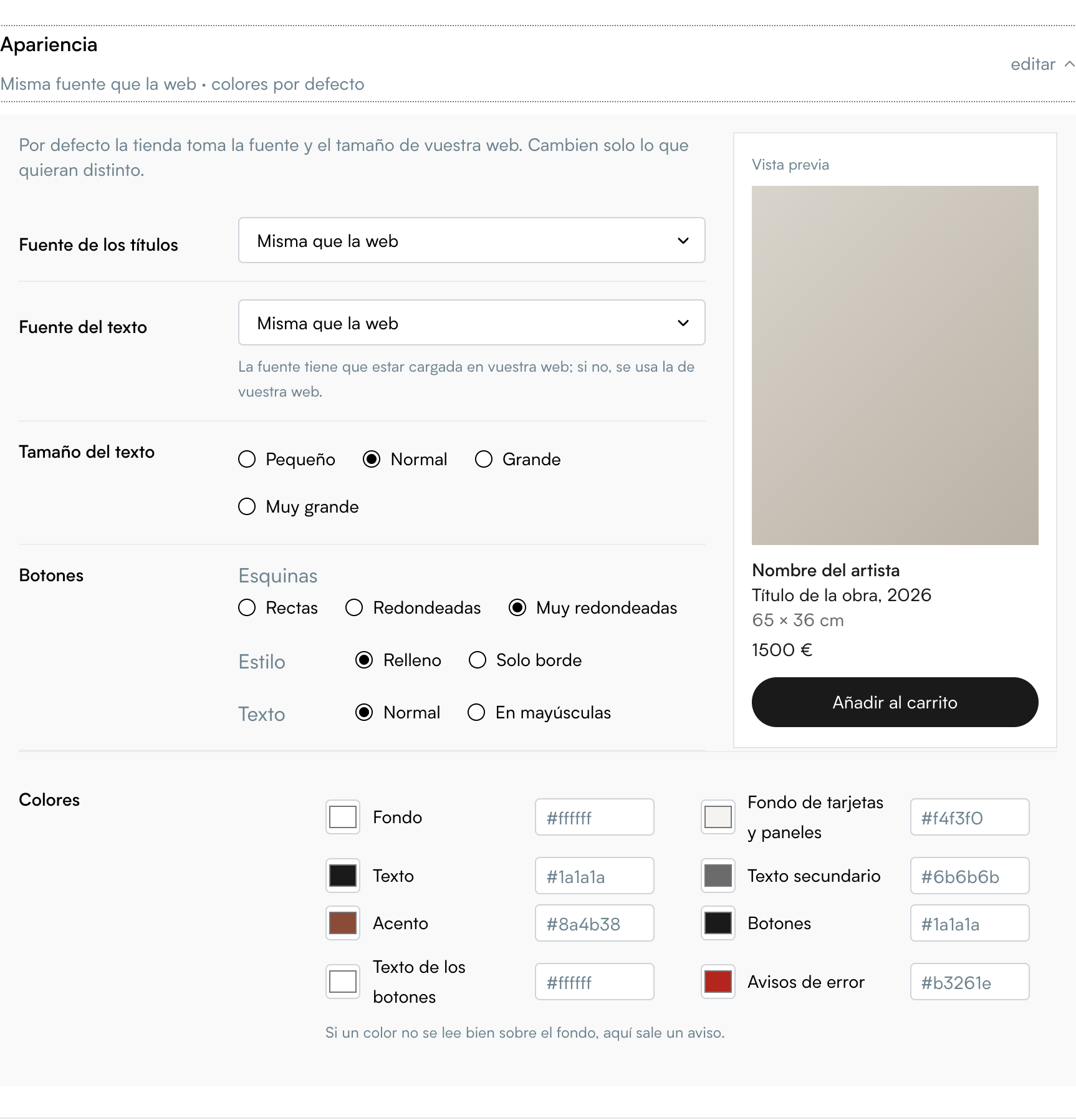
By default the shop uses your website's font and text size. Change only what you want to be different:
- Heading font and body font: Same as the website (the default) or one from the list. The font must be loaded on your website; if not, your website's font is used.
- Text size.
- Colours: background, card and panel background, text, secondary text, accent, buttons, button text and error messages. If a colour is hard to read on the background, a warning appears.
- Buttons: corners, style (filled or outline) and text (normal or capitals).
On the right, the preview of a listing card changes with each catalogue and appearance setting.
7. Languages and currencies
- Languages of the shop. If you don't tick any, it shows in the gallery's language. If your website is multilingual (for example, with WPML or Polylang), the shop follows the language of each page.
- Currencies to show: buyers can see prices converted as a guide, using the European Central Bank's rate. Payment is always taken in the gallery's currency, which is offered even if you don't tick it.
- Selectors for language and currency in the shop bar.
8. Texts
Choose the language at the top and change the texts for that language:
- Title: by default the shop has no title, because the gallery's name already shows on your website. If you want one above the listing, tick Show title and enter the text. The tick applies to all languages.
- Introduction: a short paragraph above the listing. If you leave it empty, nothing shows.
- Separate costs notice, «Enquire» button text and thank-you message after purchase. If you leave them empty, the shop's default texts are used.
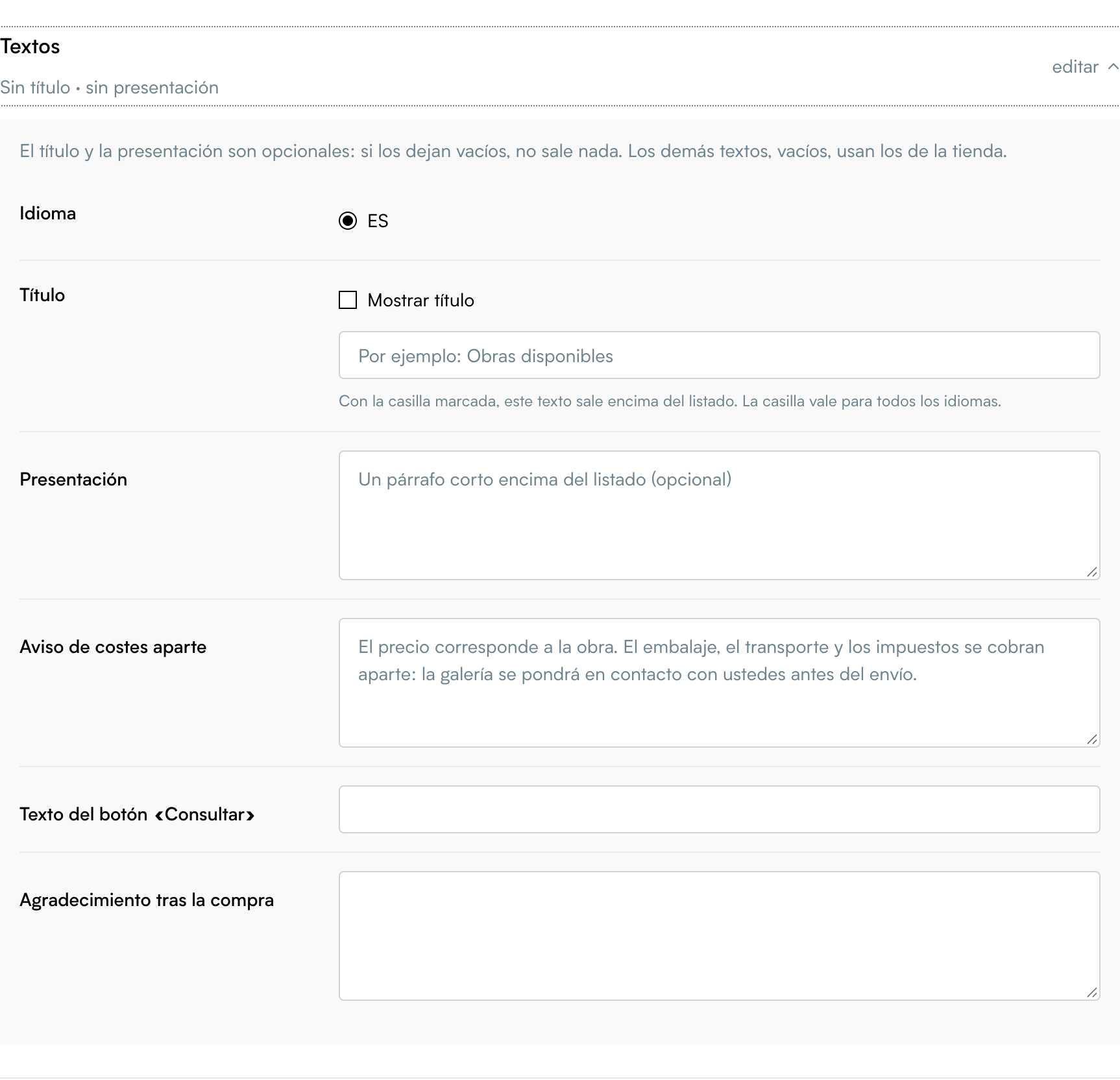
Buyers see the separate costs notice before paying. By default it says that the price is for the artwork and that packaging, shipping and taxes are charged separately. If you change it, keep that idea: consumer law requires it.
9. Advanced
- Shop key (
pk_…): identifies your shop on the website. It is not secret, but it only works on the allowed domains. If you ever need to change it, click Change the key: the old one stops working immediately and the shop won't show on your website until you paste the new code. - Developer access: the API token, for anyone who wants to build their own website with your artworks. It is secret: don't paste it on your website.
- Pause the shop: it stops showing on your website. Orders and settings are kept, and you can bring it back with Resume the shop.
Next: Put artworks on sale.