
Online sales: add the shop to your website (HTML and WordPress)
The shop goes on one page of your website, whichever you like (for example «Shop» or «Artworks for sale»). Before you start:
- Online sales must be active (Activate and set up Online sales).
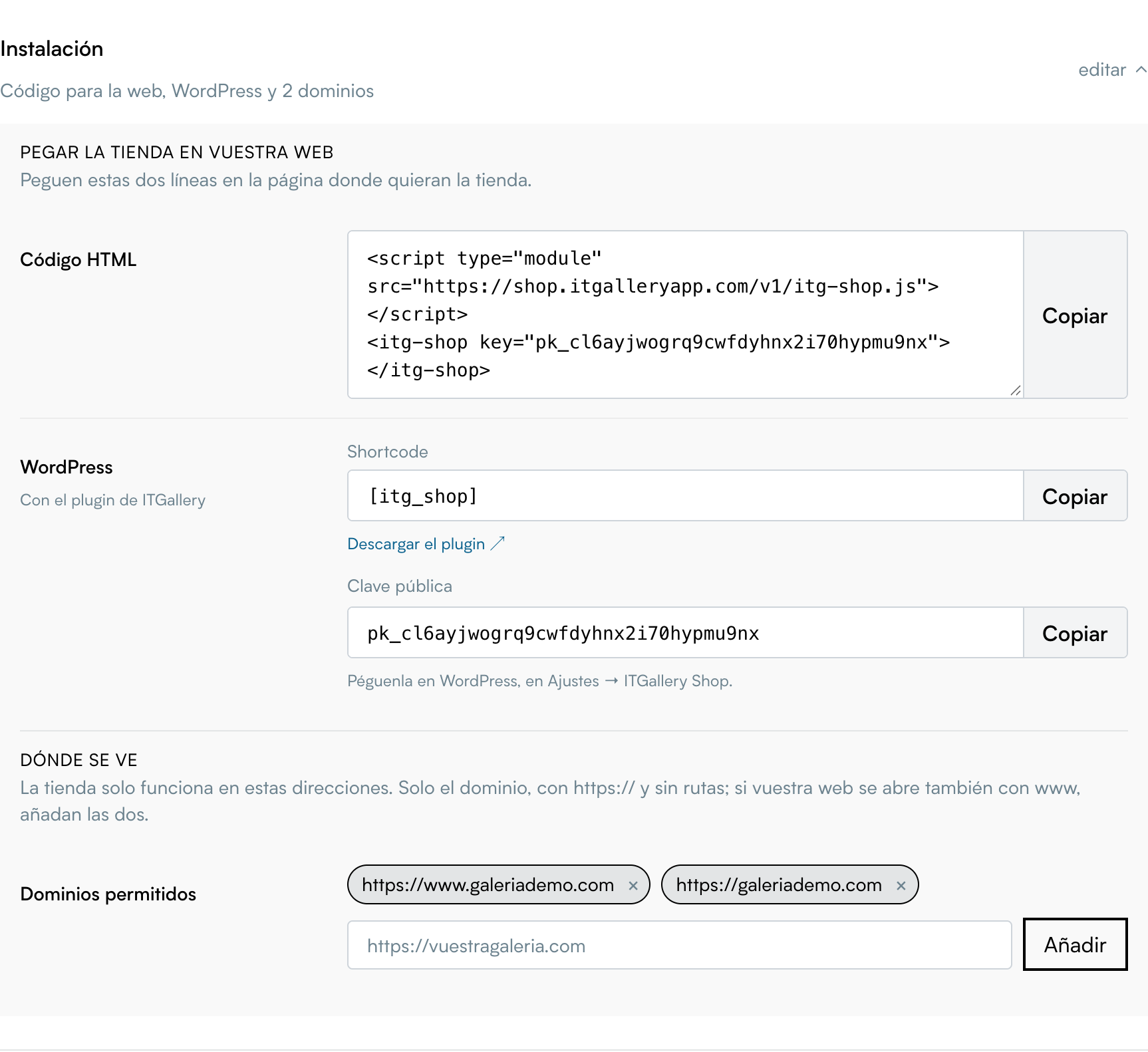
- Check that your website address is in Allowed domains, with
https://and, if the website also opens withwww, both versions.
On any website (HTML)
In My gallery → Integrations → Online sales, open the Installation section and, under Paste the shop on your website, click Copy. These are two lines like the following, with your key:
<script type="module" src="https://shop.itgalleryapp.com/v1/itg-shop.js"></script>
<itg-shop key="pk_…"></itg-shop>
Paste them into the content of the page, where you want the shop to appear. Almost every website builder (Wix, Squarespace, Webflow, Joomla…) has an «HTML» or «embed code» block for this.
Options you can add to the <itg-shop> tag:
| Attribute | What for | Example |
|---|---|---|
lang |
Shop language on this page (es, en, fr, de, it, pt, br, nl). Without it, the shop uses the page language. | <itg-shop key="pk_…" lang="en"> |
currency |
Currency for the guide prices. Payment is always in the gallery's currency. | <itg-shop key="pk_…" currency="USD"> |
If your website has several languages on different pages, add the shop to each one: it follows the language of each page.
On WordPress
- Download the ITGallery Shop plugin with the Download the plugin link, in the Online sales Installation section. In WordPress, go to Plugins → Add New → Upload Plugin, choose the zip file and activate it.
- In Settings → ITGallery Shop, paste the shop key (
pk_…), which is in the Online sales Installation section (Public key, below the shortcode), and save. - On the shop page, add the «ITGallery eCommerce» block or the shortcode:
[itg_shop]
The shortcode accepts the same options: [itg_shop lang="en"], [itg_shop currency="USD"]. With WPML or Polylang, the shop follows the language of each page automatically.
Until you paste the key, the page only shows a notice to administrators; visitors see nothing.
With Elementor
On the shop page, drag the Shortcode widget and type [itg_shop]. For the shop to use the full width, set the container to full width.
If you use an optimisation plugin that combines or defers scripts (WP Rocket, Autoptimize, LiteSpeed…), exclude itg-shop.js: it must load as it is from shop.itgalleryapp.com.
If your website has a Content Security Policy (CSP)
Most websites don't have one and don't need to do anything. If yours sends the Content-Security-Policy header, add:
| Directive | What to add |
|---|---|
script-src |
https://shop.itgalleryapp.com |
connect-src |
https://api.itgalleryapp.com |
img-src |
https://d2d5nmv8kwmev4.cloudfront.net https://dncs92qkcz9jn.cloudfront.net |
style-src |
'unsafe-inline' (recommended) |
Nothing is needed for Stripe: to pay, the buyer goes to Stripe's page and comes back. For the details, ask support for the shop's CSP guide.
Check that it works
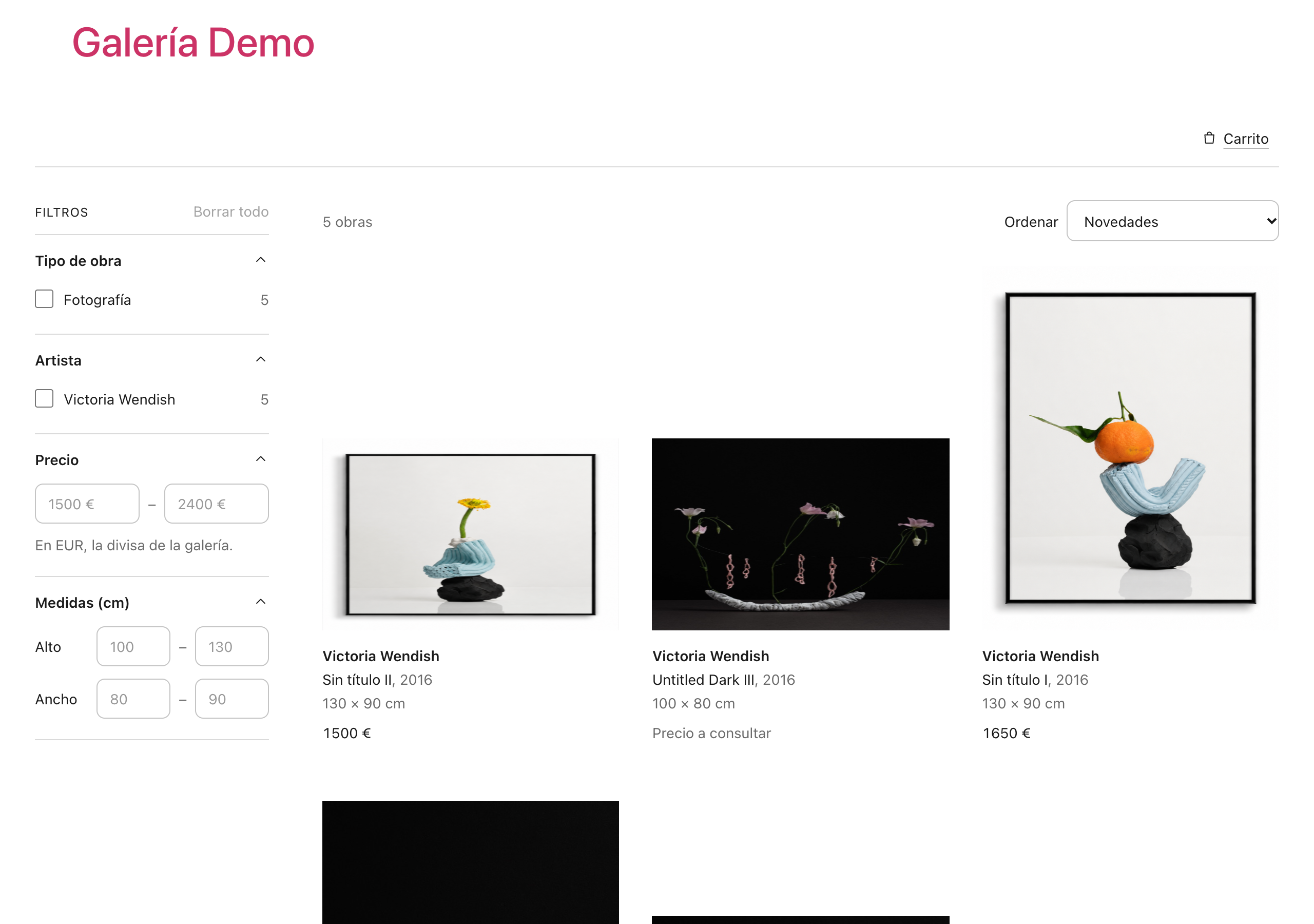
- Open the shop page on your website: you should see the list of artworks.
- Open an artwork, add it to the basket and go as far as the checkout form. You don't need to pay.
- If the shop does not appear:
- Nothing shows: check that Online sales is active (not paused) and that the exact website address is in Allowed domains.
- «This shop is not available»: the key is not your shop's or the shop is paused.
- On WordPress, a notice about the key: paste the key in Settings → ITGallery Shop.