
Add a button in an email template
The button block allows you to add a call to action (CTA) to direct recipients to an external page such as a showroom or your website.
Add a button
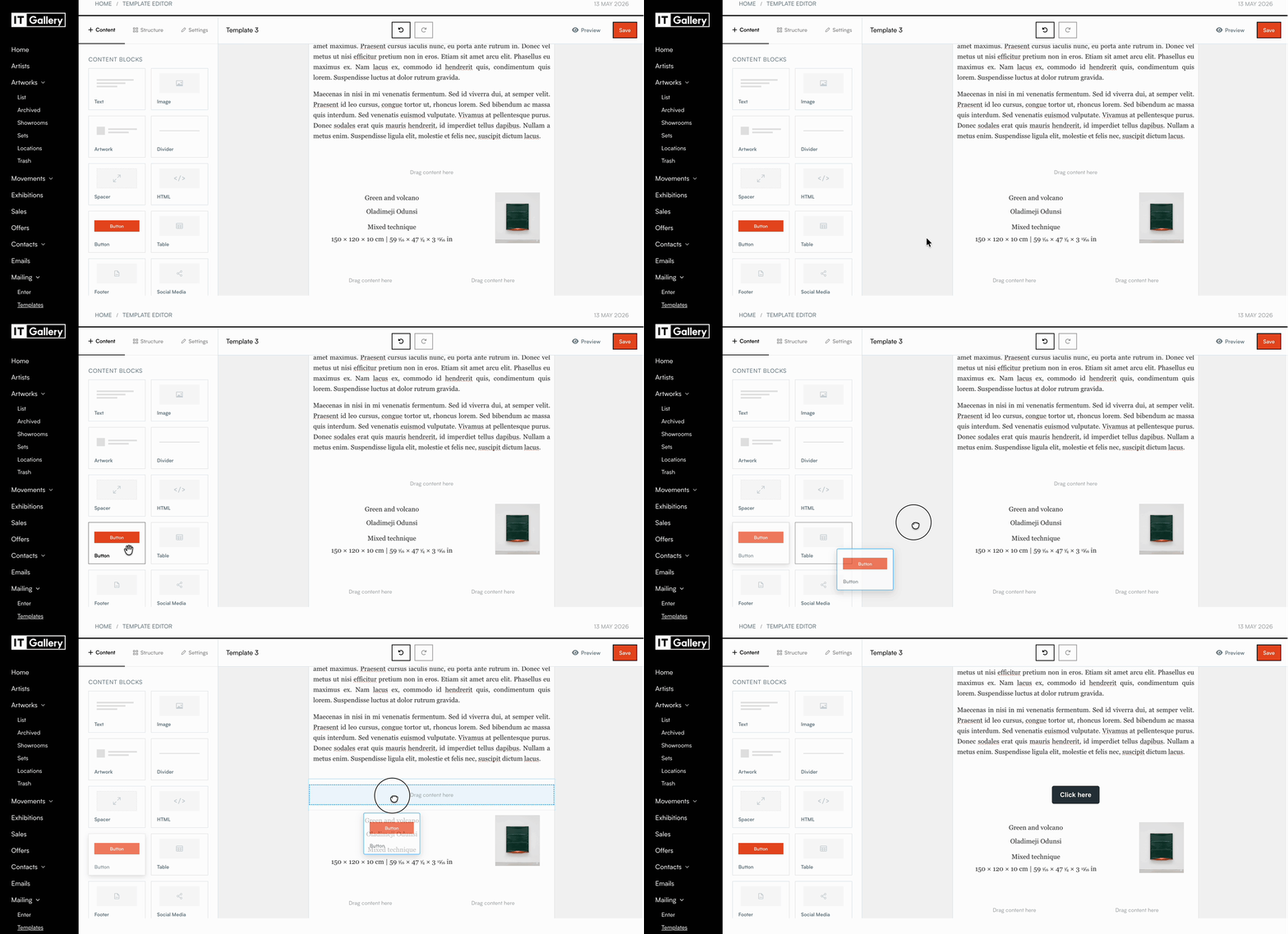
- Go to the template editor from the Mailing module.
- In the left-hand menu, under Content, select the Button block.
- Drag the block into the desired position in your template.
Configure the button
Once the button is added, define its content and behavior:
- Enter the URL you want to link to.
- Define the button text (for example: “View artwork” or “Access showroom”).
- Adjust the button alignment within the block (left, center, or right).
- Select the button background color.
- Define the button text color.
Button design
Customize the appearance of the button from the left-hand menu.
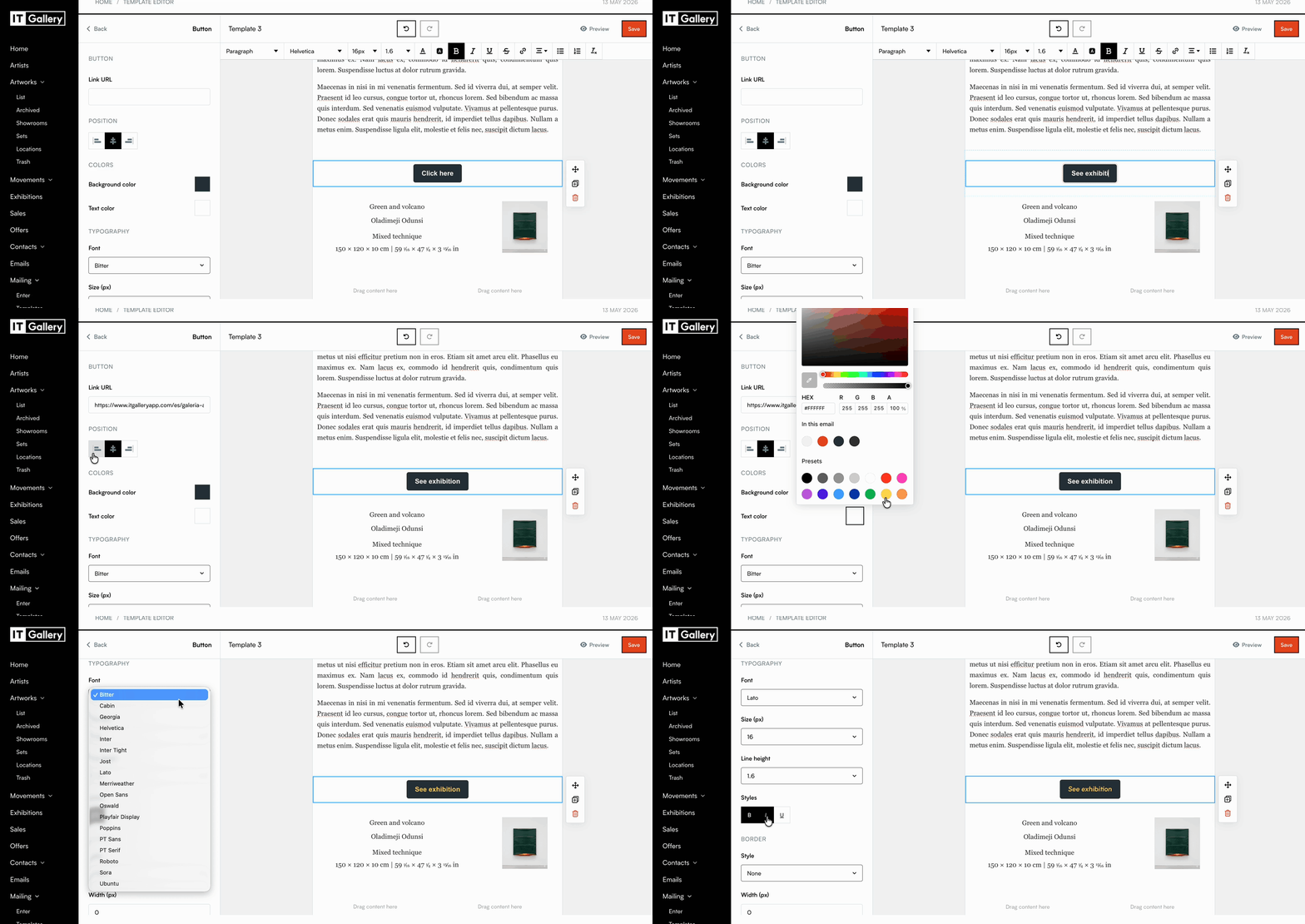
- Set the border style (solid, dashed, or dotted).
- Adjust the border thickness.
- Define the border color.
- Adjust the border radius to round the corners.
Tip
You can define button colors in advance from the Styles section to maintain consistency across your templates.
Block spacing
Adjust the space around the button by modifying the margins to control the separation from other elements.